How To Connect PS5 Controller To PC With Simple Methods
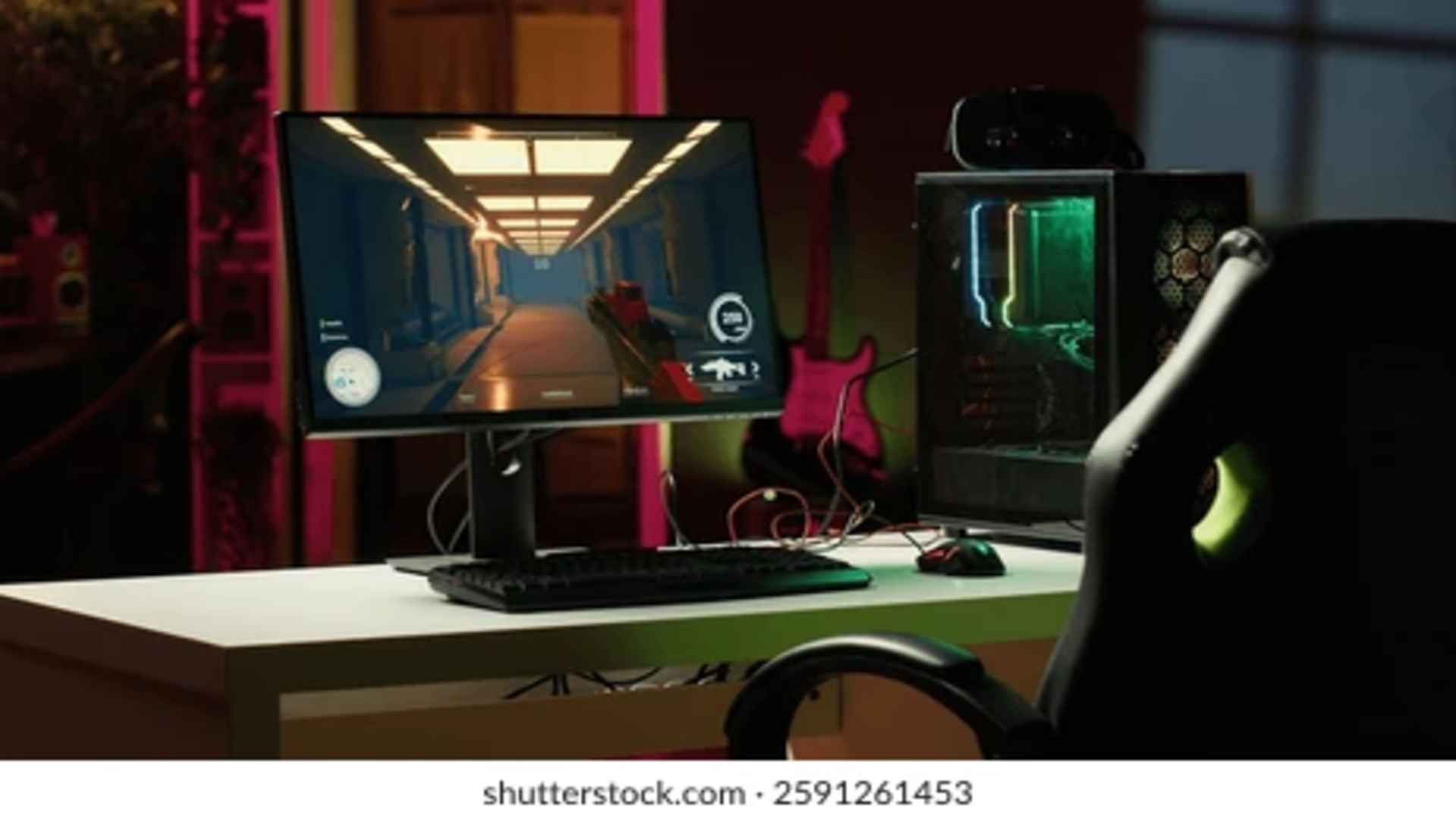
The PlayStation 5 DualSense controller is widely celebrated for its advanced haptic feedback and ergonomic design, making it an excellent choice for PC gamers seeking an immersive experience. Fortunately, integrating this sophisticated gamepad into a desktop environment is an incredibly straightforward process that takes only a few minutes. Whether you prefer the absolute stability of a physical wire or the freedom of a wireless configuration, modern operating systems make synchronization seamless.
Connecting Instantly with a Wired USB Connection
The most immediate and reliable method to establish a connection is by using a standard physical cable. Gamers simply need to plug a high-quality USB-C to USB-A or USB-C to USB-C cable into the controller and an open port on their computer. Windows will instantly recognize the hardware, allowing you to jump directly into your favorite titles without navigating complicated setup menus.
Using a wired setup provides several distinct structural advantages over wireless protocols. It completely eliminates input latency, ensuring that your actions register with pixel-perfect precision during intense competitive matches. Furthermore, a wired connection ensures that your gamepad charges continuously while you play, preventing unexpected disconnects during lengthy gaming sessions.
Pairing over Bluetooth for Wireless Freedom
For individuals who prefer a clean desktop layout free from tangled wires, utilizing the built-in Bluetooth protocol is an ideal alternative. To initiate this process, make sure your computer has active Bluetooth capabilities turned on through the system settings menu. Next, press and hold the central PS button and the top-left Create button on your DualSense gamepad simultaneously until the light bar begins to flash rapidly.
Once the device enters its discovery state, open the Bluetooth management menu on your computer and click the option to add a new device. Select the wireless controller from the populated list of nearby hardware to finalize the pairing sequence. The light bar will settle on a solid color indicator, signaling that your wireless gamepad is ready for deployment.
Optimizing Performance and Advanced Features through Steam
While basic plug-and-play functionality works well across many standard desktop environments, utilizing specialized client platforms unlocks the true potential of your hardware. Many desktop applications offer extensive configuration suites that allow users to customize button layouts, adjust thumbstick sensitivity curves, and manage internal LED brightness levels. This deep level of personalization helps tailor the device to your exact mechanical preferences.
Furthermore, running your favorite titles through specialized gaming clients ensures a broader compatibility layout for older games that might not natively support modern inputs. It bridges the structural gap between console architecture and desktop software. For players who want to explore extensive communities or share custom input configurations online, utilizing your personal Steam account provides a great platform for tracking your global progress and connecting with other gamers.
Enabling Immersive Haptics and Adaptive Triggers
To experience premium native features like adaptive trigger resistance and high-fidelity haptics, certain criteria must be met within the desktop environment. Most mainstream PC titles require the controller to remain plugged in via a USB cable to transmit the dense audio data required for complex haptic sensations. Developers are increasingly adding this native support directly into modern PC releases, creating parity with console versions.
Before launching an immersive game, it is highly recommended to disable external input emulation software to let the game communicate directly with the hardware. Checking the audio output settings on your desktop is also crucial, as the operating system may accidentally route system sound through the controller's internal speaker. Proper audio configuration ensures that the tactile feedback functions precisely as the sound designers intended.